API Keys
Generate and manage credentials so your application can call Brixus365 programmatically.
API keys are long-lived credentials that identify your application. Every API request includes the key in the X-API-Key header.
Never commit API keys to version control. Use environment variables or a secrets manager.
Key types
Brixus365 issues two key types depending on how you signed up:
| Key type | Prefix | How to get it | What it can do |
|---|---|---|---|
| Preview key | bx_preview_… | Email-only widget on /developers — no full signup, no DNS | Send via starter templates only. Sender is fixed to noreply@brixus365.dev. 50/day, 1,500/month, 10/min. |
| Live key | bx_live_… | Requires a Standard or Enterprise plan — create one from Settings → API Keys after signing up at app.brixus365.com/signup | Full transactional API: starter templates, raw HTML, batch send, SMTP. Send from your verified domain. |
The preview key is great for “try the API in 30 seconds” exploration. When you outgrow its limits — or want to send from your own domain — upgrade to a Standard or Enterprise plan and create a bx_live_… key from Settings → API Keys. Free and Pay As You Go accounts can’t create a live key. See Quickstart for the two paths side-by-side.
Create your key
To create a bx_live_… key you need a Brixus365 account on a Standard or Enterprise plan — Free and Pay As You Go accounts see an upgrade prompt instead of the key form. The full setup (signup → upgrade → key → domain → default sender) is covered in Before you send. The short version:
1. Sign in to the Brixus365 app
Go to app.brixus365.com and sign in.
2. Open Settings → API Keys
Click your workspace name in the top-left, then Settings → API Keys in the Developer section.
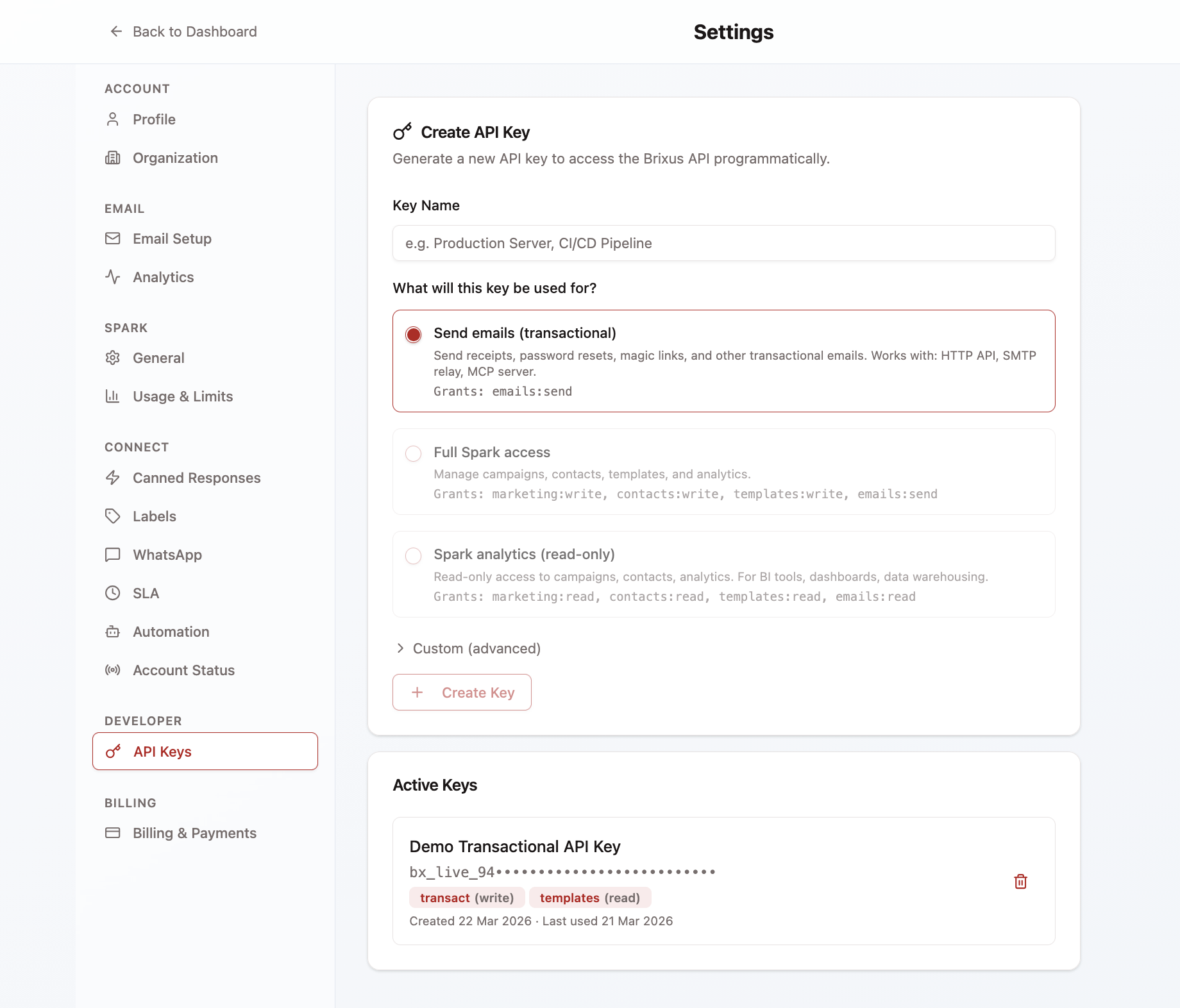
3. Click “Create API Key”
Give the key a descriptive name (e.g. production-backend, staging-worker) and pick a preset below.
4. Copy the key immediately
The full value is shown once, immediately after creation. Copy it now and store it securely. If you lose it, revoke the old key and create a new one.
Key presets
The dashboard offers four presets. Pick the one that matches what your integration needs to do.
| Preset | Pick this when… | What it grants |
|---|---|---|
| Send emails (transactional) | You only need to send transactional email — receipts, password resets, magic links, OTPs. Works with the HTTP API, SMTP relay, and MCP server. | Permission to send emails (and read your own send history) |
| Full Spark access | You’re building a marketing automation backend — managing campaigns, contacts, templates, and analytics programmatically. | Manage Spark campaigns + contacts + templates + send transactional |
| Spark analytics (read-only) | You’re feeding Brixus data into a BI tool, dashboard, or warehouse. Read-only by design — this key cannot send anything. | Read campaigns, contacts, templates, send history |
| Custom (advanced) | You want a specific slice of permissions. Tick exact Read / Write checkboxes per resource (Templates / Spark / Contacts). | Whatever you tick — least privilege recommended |
Most integrations want “Send emails (transactional)”. If you’re just starting, pick this — you can always create additional keys later for specific workflows.
Plan requirement
A bx_live_… key — of any preset — requires a Standard or Enterprise plan. Free and Pay As You Go accounts can’t create one; clicking Create API Key shows an upgrade prompt instead of the form. This applies to every scope, not just Spark campaigns.
If your account moves to Free or Pay As You Go after you already have a key (a cancelled subscription, for example), see Rotate & revoke.
If you request a scope your plan or key type doesn’t allow — e.g. marketing:* on a preview key — the response is 403 SCOPE_NOT_ALLOWED_FOR_TIER and the key isn’t created.
Use your key
Pass your key in the X-API-Key request header on every API call.
Base URL
https://app.brixus365.com/api/v11curl -X POST https://app.brixus365.com/api/v1/emails \
2-H "X-API-Key: bx_live_your_key_here" \
3-H "Content-Type: application/json" \
4-d '{
5 "to": "you@example.com",
6 "starterTemplate": "welcome",
7 "variables": { "name": "Friend", "app_name": "Acme" }
8}'A successful send returns HTTP 200 with a messageId you can use to look up delivery status. For more languages (PHP, .NET, Java, Go, Rust, Ruby, Elixir, Swift, SMTP) see Code examples.
Don’t use Authorization: Bearer for API keys — that header is reserved for dashboard JWTs. Sending an API key in Authorization returns 401 missing_api_key.
Rotate & revoke
To revoke a key: open Settings → API Keys, find the key, and click the trash icon. The key stops working immediately.
If your account moves from a paid plan to Free or Pay As You Go, all API keys are revoked automatically. Upgrading again does not restore them; create new keys.
Rotation checklist:
- Create a new key with the same preset
- Update your application to use the new key (deploy / rotate the env var)
- Verify the new key works in production
- Revoke the old key
Rotate periodically — especially if a key was ever exposed in logs, error messages, or source control. Revoke immediately if you suspect compromise.